
Tutorials
Downloader Guide
The Downloader is the fastest way to get environmental forcing data into STFM — no external accounts to juggle, no manual file wrangling. Start here before trying any manual method.
Overview
The Downloader fetches the oceanographic and meteorological data used as forcings for the simulation: ocean currents (HYCOM), atmospheric winds (GFS), and waves (Copernicus Marine). Data is downloaded for your period of interest and saved directly to the project's RAW_DATA/ folder — ready for the Converter.
- In the top bar, click Tools.
- Click Downloader. The Downloader opens in a separate window.
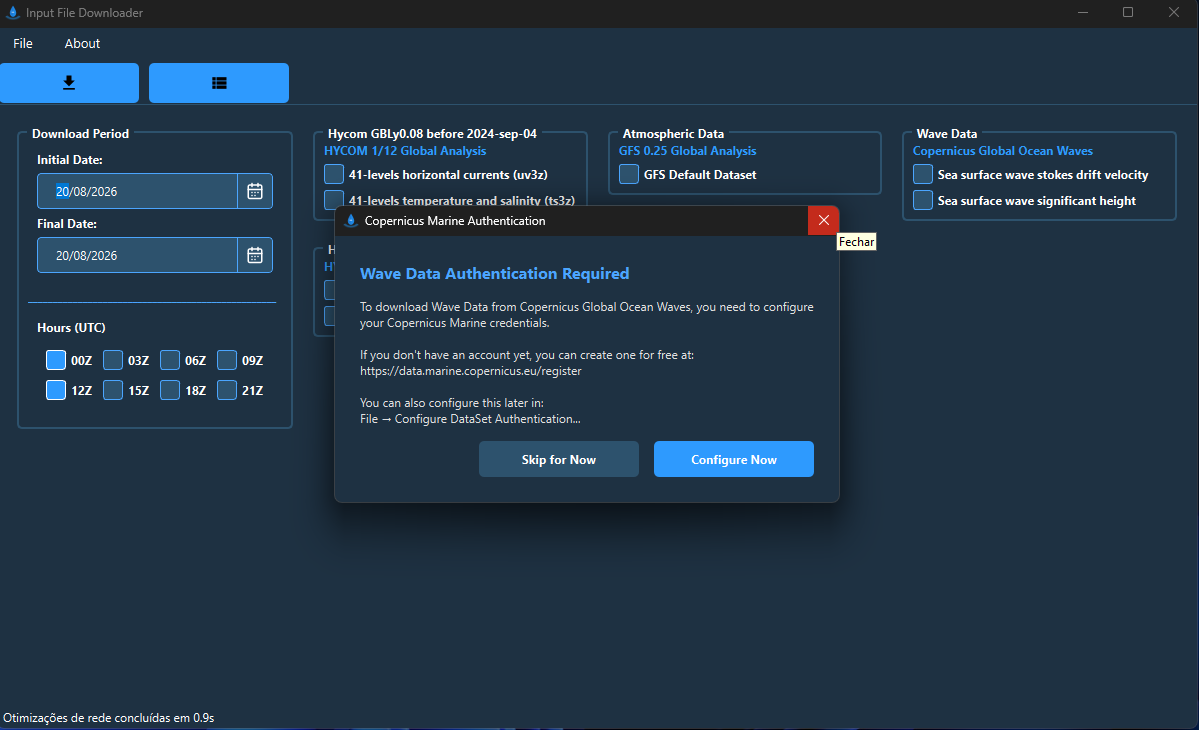
Available data sources
| Source | Data | Use in the simulation |
|---|---|---|
| HYCOM | Ocean currents at multiple depths, temperature and salinity | Main driver of the slick's trajectory |
| GFS | Surface atmospheric winds | Additional slick drift (~3% of wind speed) and evaporation |
| Copernicus Marine | Significant wave height and Stokes drift | Dispersion of oil droplets and wave-driven drift |
Step by step
1. Select the destination folder
On the first screen, click Browse, navigate to the project's RAW_DATA/ folder, and confirm.
2. Configure Copernicus credentials
If you will be downloading wave data, an authentication window appears automatically. Enter your Copernicus Marine username and password and click Configure Now. If you don't have an account, visit marine.copernicus.eu to create one. If you'd rather configure it later, click Skip for Now.
3. Set the period
- Click the Initial Date field and select the start date: it must be equal to or earlier than the spill date configured in Settings.
- Click the Final Date field and select the end date: it must cover the entire simulation period configured in Settings.
4. Select the times
Check the UTC times you want to download: 00Z, 03Z, 06Z, 09Z, 12Z, 15Z, 18Z, 21Z. The more times you include, the better the representation of current and wind variability throughout the day, especially in regions with tides or coastal breezes.
5. Select the variables
For each source, check the desired variables:
- HYCOM: check 41-levels horizontal currents (uv3z) for currents and/or 41-levels temperature and salinity (ts3z) for temperature and salinity (needed for 3D simulations and for temperature-dependent evaporation)
- GFS: check GFS Default Dataset for atmospheric wind data
- Copernicus: check Sea surface wave stokes drift velocity for the wave-driven Stokes drift and/or Sea surface wave significant height for wave height (used to calculate droplet dispersion)
6. Start the download
Click the download button (down-arrow icon at the top of the screen). The progress window opens.
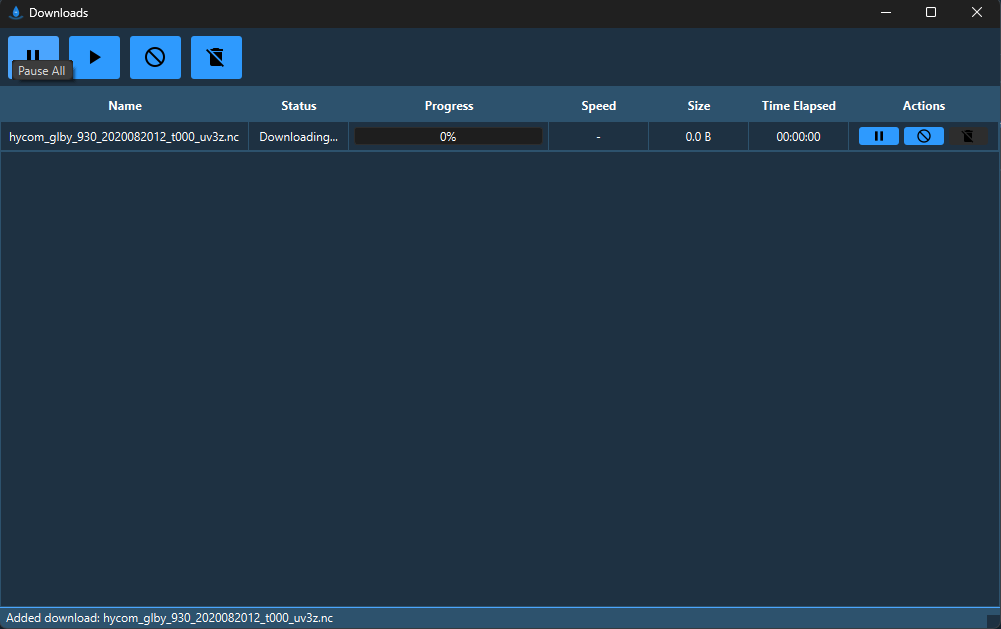
7. Interrupted downloads
If a download is interrupted, its state is saved automatically. The next time you open the Downloader, it will ask if you want to resume. Downloads older than 7 days are not resumed.
If the Downloader doesn't work on your machine — limited local storage, a restricted network, or similar constraints — the manual guides (HYCOM, GFS, Mercator, ERA5) walk through getting the same data directly from each source.
Next steps
Once your files are in RAW_DATA/, head to the Converter Guide to clip and format them for your project's grid.
Next
Convert what you downloaded
Raw data needs to be clipped and formatted before STFM can use it.