
Tutorials
GFS Guide
How to download GFS wind forecast data directly from the source, without using the built-in Downloader.
Use the Downloader and Converter first. They fetch and prepare GFS winds automatically, with no manual file hunting. If you're not getting good results with them, you can get this data manually by following the guide below. See the Downloader Guide and Converter Guide first.
Overview
GFS (Global Forecast System) provides the atmospheric wind data STFM uses to add wind-driven drift and intensify evaporation. Historical GFS data is archived by NSF NCAR's Geoscience Data Exchange (GDEX), dataset d084001, and served as individual GRIB2 files through the Open Science Data Federation (OSDF) a plain directory listing, not a request form like HYCOM's.
This is a bare file browser: click a folder to open it, click a filename to download it immediately there's no area or variable selection, and no way to select multiple files at once. Each click downloads one file.
Finding the right files
- Direct link: osdf-cache-01.gwave.ics.psu.edu/.../d084001. The specific server address can vary (it may be routed through different OSDF cache nodes), but it always follows the same path structure:
.../ncar/gdex/d084001/
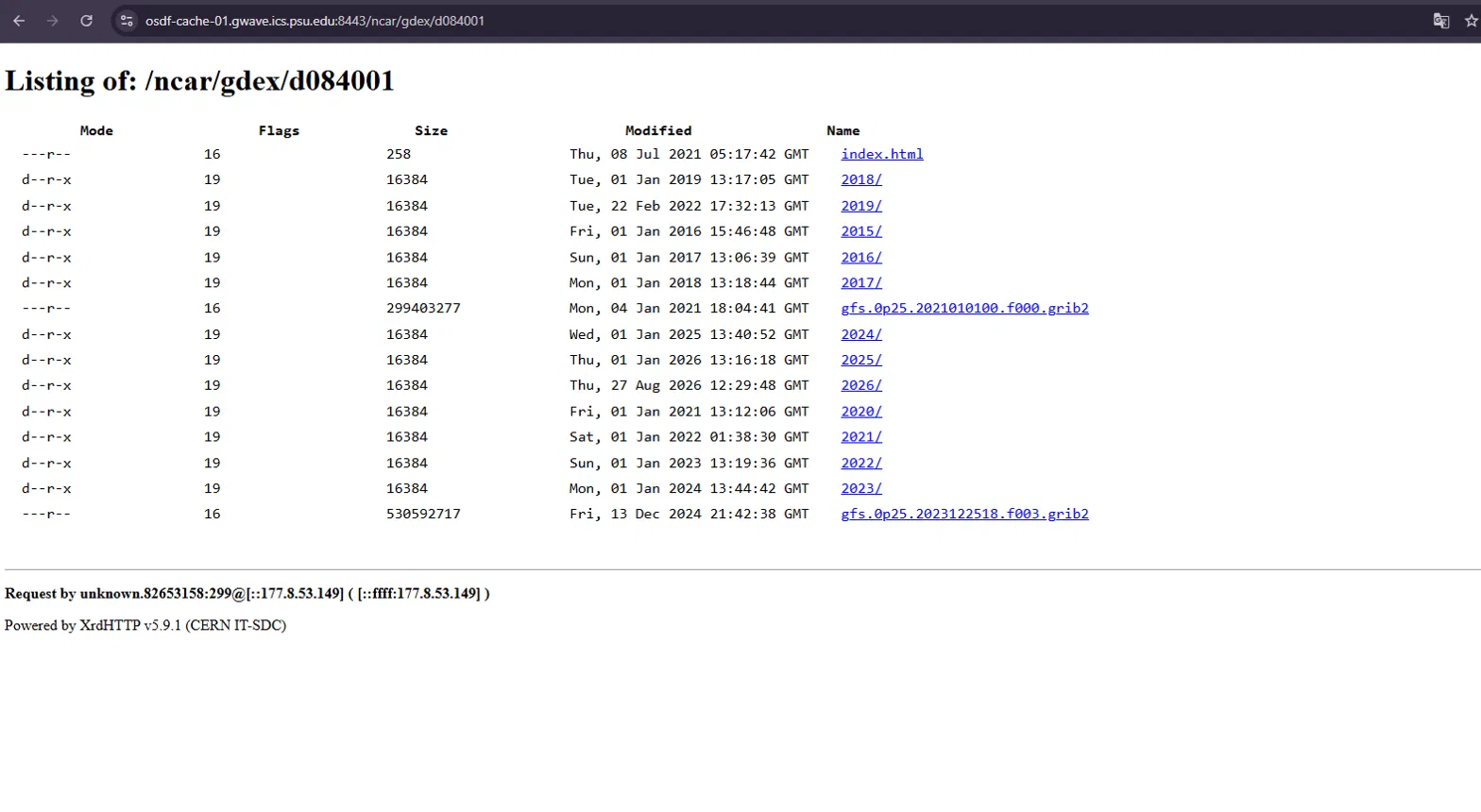
- Click into the year folder matching your spill date.
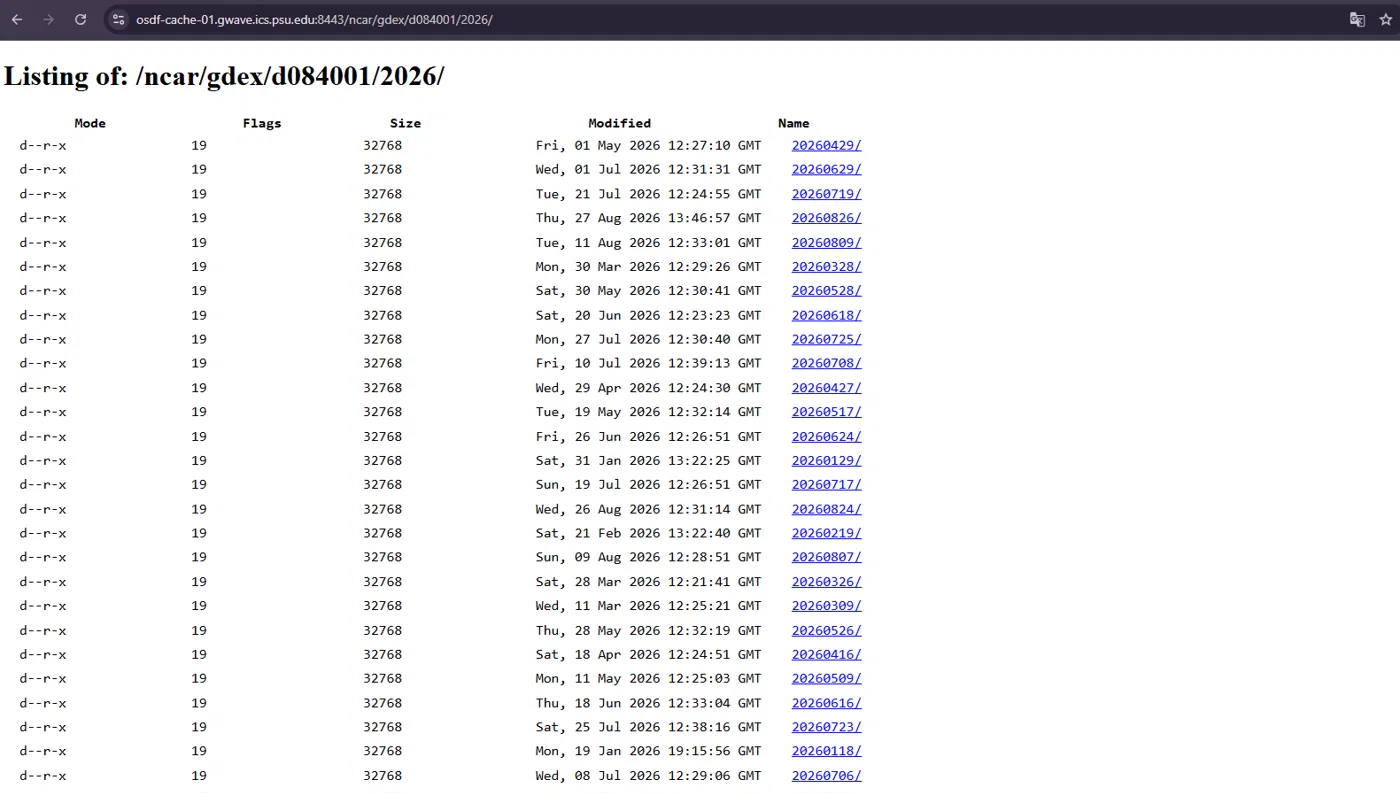
- Click into the specific date folder (YYYYMMDD) you need.
![Directory listing inside a date folder, showing individual GRIB2 files named gfs.0p25.[run].f[hour].grib2](img/guides/gfs-03-listing-date.png)
-
Files are named following this pattern:
gfs.0p25.[YYYYMMDDHH].f[HHH].grib2- The [YYYYMMDDHH] part is the model run time GFS runs four times a day, at 00, 06, 12, and 18 UTC.
- The f[HHH] part is the forecast hour offset from that run f000 is the analysis itself, f003 is 3 hours ahead, f006 is 6 hours ahead, and so on.
The listing isn't sorted by run or forecast hour files from different runs are mixed together in the same folder. Use your browser's find-on-page search (Ctrl+F / Cmd+F) and search for the run timestamp you need to locate the right files faster.
Downloading
- Click a filename it downloads immediately, one file per click. There's no batch selection on this server.
- To cover your full simulation period, repeat this for each forecast hour you need from the same run (f000, f003, f006 …) until you've spanned your simulation window.
- Save all files into your project's RAW_DATA/ folder, keeping the original filenames intact the Converter reads the date and forecast hour from the filename itself.
Next steps
With the GRIB2 files in RAW_DATA/, open the STFM Converter tool and select the Global Forecast System (GFS) card to convert and clip them to your project's grid. See the Converter section of the main Getting Started guide for that step.
More Guides
Already have your winds?
For a realistic simulation, grab the HYCOM currents next too.