
Tutorials
ERA5 Guide
How to download ERA5 wind data directly from the Copernicus Climate Data Store, without using the built-in Downloader.
Use the Downloader and Converter first. For most cases GFS (fetched and prepared automatically) is enough for wind forcing. If you're not getting good results with them, or your project specifically calls for ERA5's reanalysis-quality winds, you can get this data manually by following the guide below. See the Downloader Guide and Converter Guide first.
Overview
ERA5 is ECMWF's global atmospheric reanalysis, available from the Copernicus Climate Data Store (CDS), with wind data going back to 1940.
The Converter's ERA5 card isn't functional yet. It shows up as a dataset option, but currently displays "Module Unavailable" when opened see the Converter Guide for status. Until that ships, downloaded ERA5 files can't be converted through the app; they're documented here for when you have a source-specific need, ahead of that support landing.
Step by step
1. Create an account
Go to the Copernicus Climate Data Store and register. Account creation runs through ECMWF's own login system (accounts.ecmwf.int) first name, last name, email, and password.
Two extra steps after registering: you must confirm your address by email, and after confirming, CDS asks a few additional profile questions before the account is fully active. Budget a few minutes beyond just filling the form.
This account is separate from the one used for Mercator. Copernicus Marine and CDS both carry the "Copernicus" name but run independent account systems. If you're setting up both, expect to register twice.
2. Open the ERA5 hourly dataset
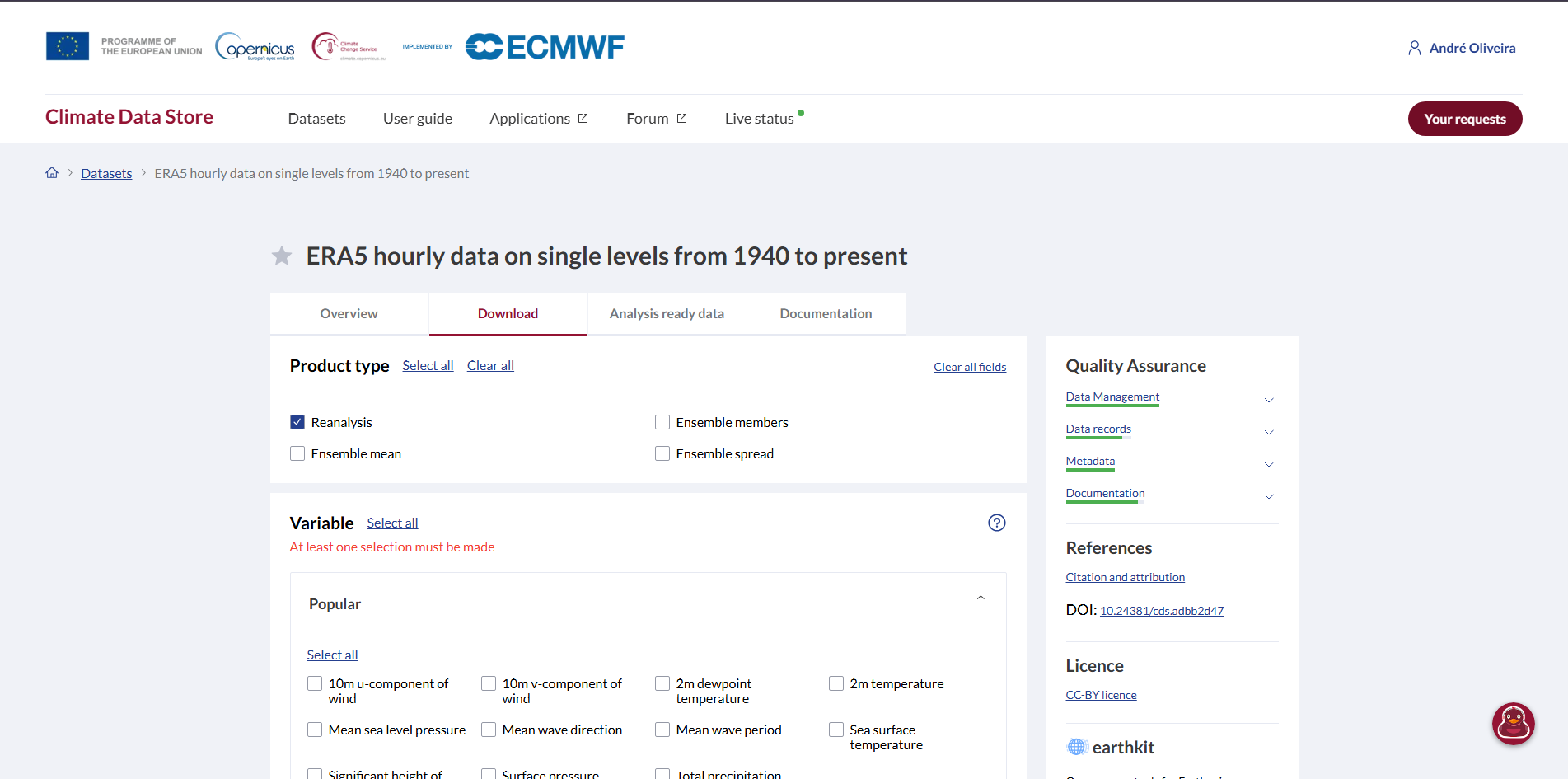
Direct link: cds.climate.copernicus.eu/datasets/reanalysis-era5-single-levels opens straight to the Download tab.
Search carefully if browsing instead CDS also lists a similarly named "ERA5 post-processed daily statistics" dataset that sorts near the top by default. That's pre-aggregated into daily values. STFM needs "ERA5 hourly data on single levels from 1940 to present" instead.
3. Product type
Leave Reanalysis checked it's selected by default and is the correct product type for STFM.
4. Select your wind variables
Under Variable, the Popular group is expanded by default and already lists the wind components no need to dig into the separate "Wind" category. Check:
- 10m u-component of wind
- 10m v-component of wind
The form marks Variable with a warning icon in the sidebar checklist until at least one is selected.
5. Set year, month, day, and time
Each is its own checkbox grid, all marked "at least one selection must be made":
- Year, Month, Day: check every value that falls within your simulation period.
- Time: check the UTC hours you want use Select all for full-day coverage.
6. Set the geographical area
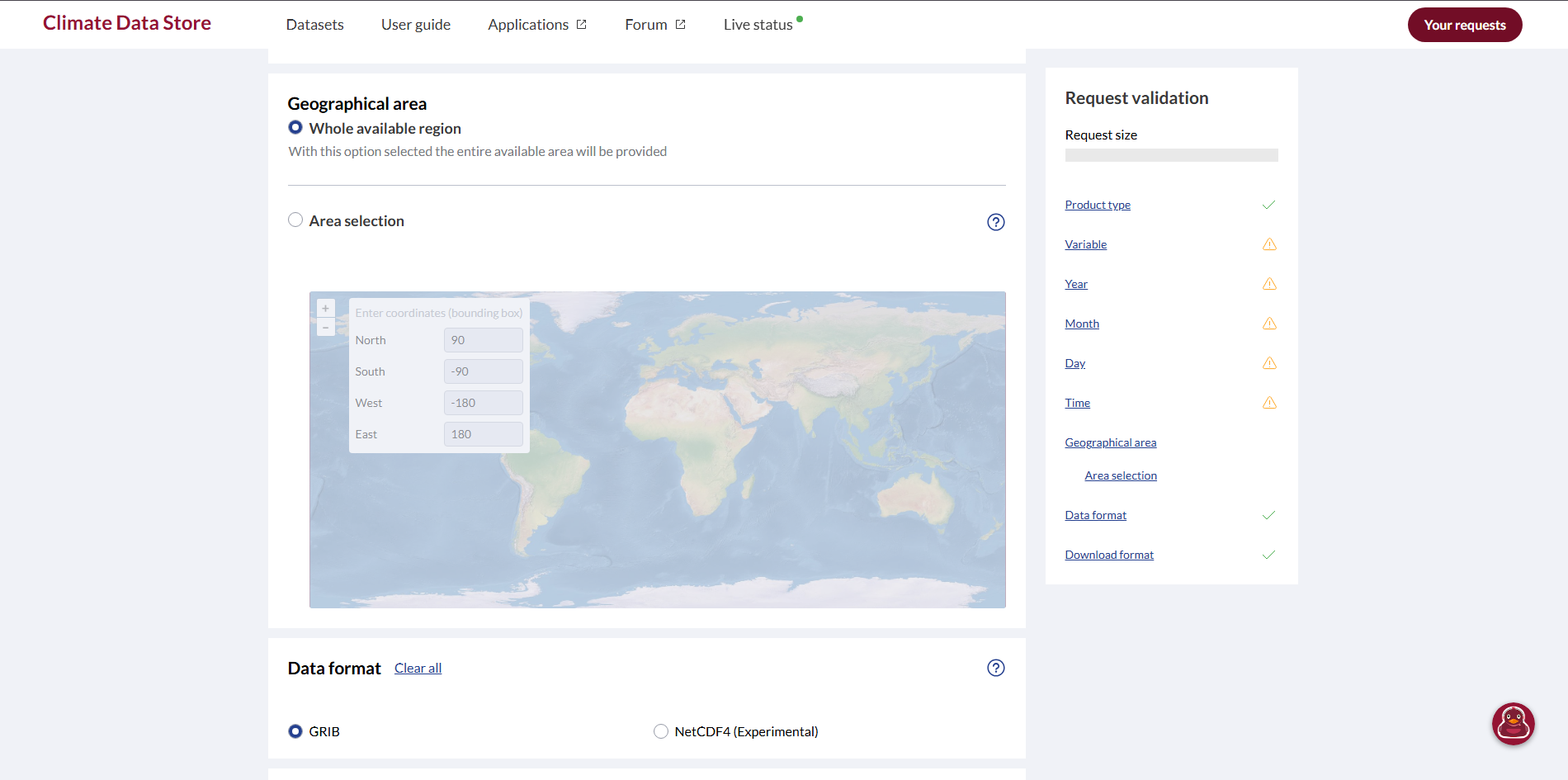
Under Geographical area, switch from Whole available region to Area selection, then enter your bounding box in the North / South / West / East fields (matching your STFM grid area).
7. Choose format
- Data format: GRIB is the default and generally safe to keep; NetCDF4 is marked experimental on this dataset.
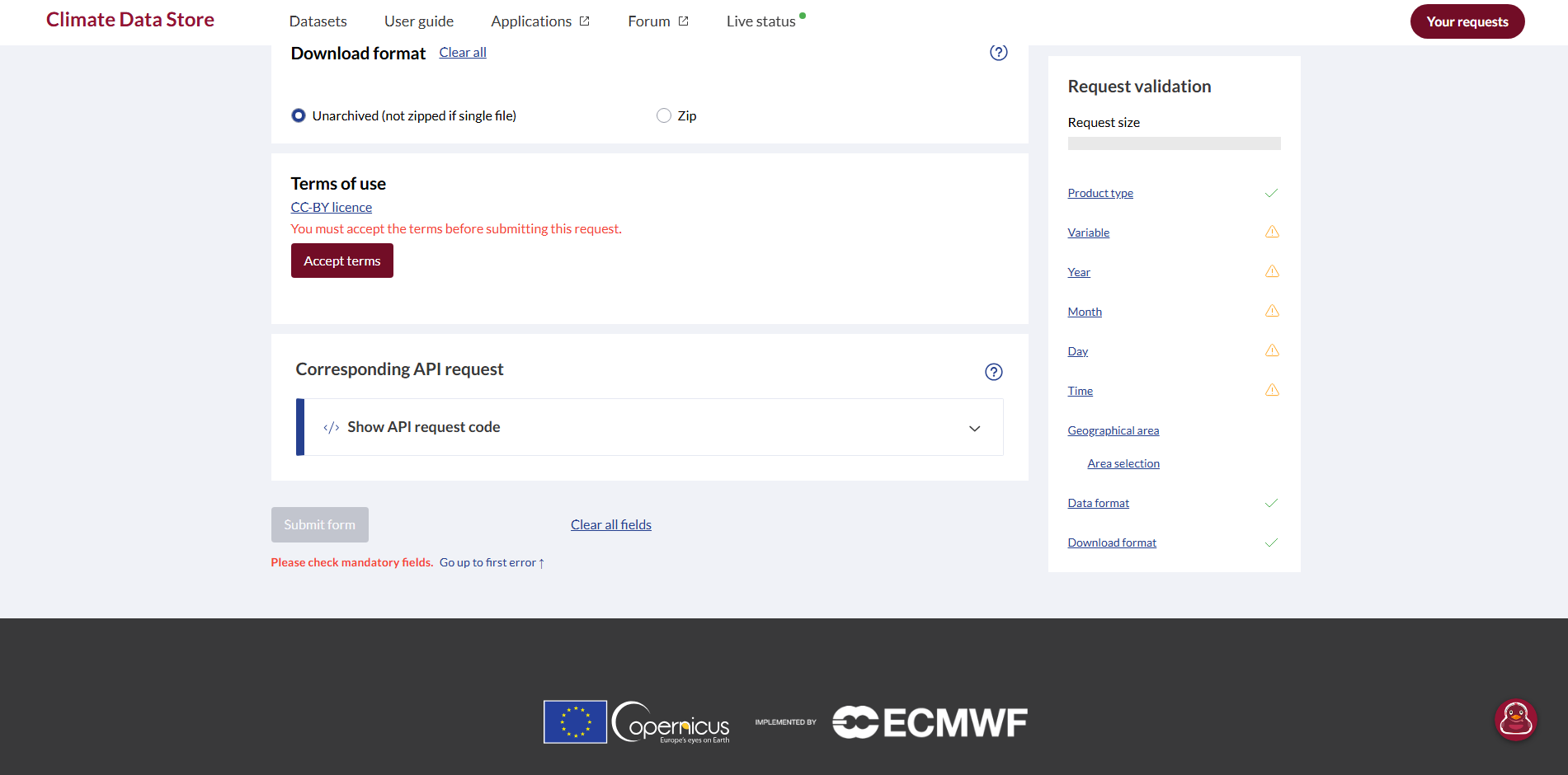
- Download format: Unarchived is fine for a single file; choose Zip if requesting a large batch.
8. Accept terms and submit
Click Accept terms under Terms of use (CC-BY licence) required before the form will submit. Once every item in the Request validation sidebar checklist shows a checkmark, click Submit form.
Save the resulting file into your project's RAW_DATA/ folder.
Next steps
Once the Converter's ERA5 support ships, open it and select the ECMWF Reanalysis v5 (ERA5) card to convert and clip the file to your project's grid. See the Converter Guide for current status.
More Guides
Already have your winds?
Go back and grab the Mercator currents next both are required together.